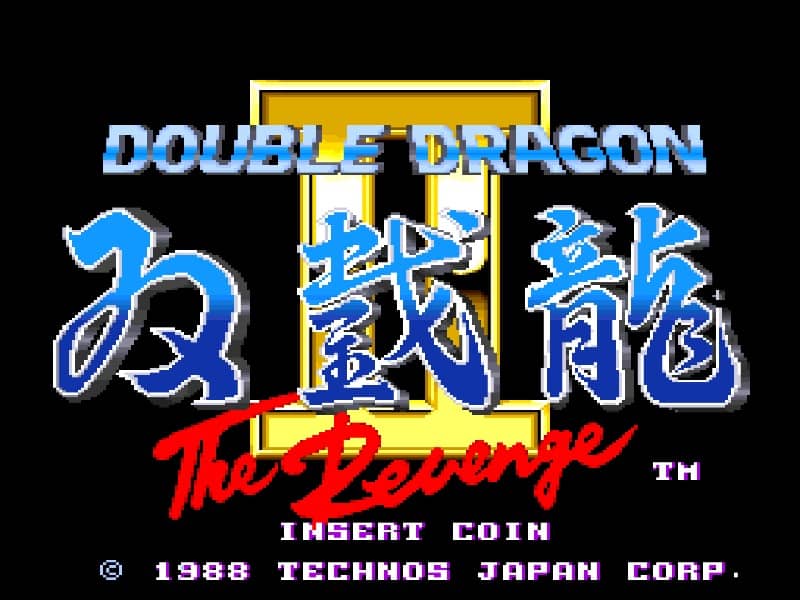
Arcade · 1988
Double Dragon II: The Revenge
Double Dragon II uses left- and right-facing attacks for close-range street fights. Read how its arcade controls differ.
Arcade · 1988
Double Dragon II uses left- and right-facing attacks for close-range street fights. Read how its arcade controls differ.
Click the button below to launch the Arcade emulator and start playing instantly in your browser.
These are separate games or editions; your saved progress does not transfer.
Browse all playable games →Wait for larger games to download. If loading stalls, reload and try again. Check your connection and allow this site's player files if a browser extension blocked them. Once the screen appears, click inside it before using the keyboard.
Read the playing helpStart the game, then use its on-screen direction pad and action buttons. If they are hidden, choose Show touch controls above the game. Turn your phone sideways for more room; use Fullscreen when your browser supports it.
Use the on-screen Select / coin button before Start.
Touch support varies by emulator and game. You can still expand the keyboard layout below, or connect a compatible keyboard or gamepad.
Control panel
Arrow keys move · V inserts a coin in coin-operated games · Enter starts · Z / X / A / S are action keys.
A compatible gamepad can be used after launch.
Default Player 1 keys are shown. If you changed them or use a gamepad, check the player’s control settings.
System: Move the pointer over the game screen to reveal the player toolbar, or tap its menu button on touch devices. Use the toolbar for save and load states, fullscreen, and control settings.
Importing replaces the save stored for this game on this browser. Download your current backup first if you want to keep it.
Launch the game to check save-state support.
Save progress keeps one emulator snapshot for this game on this browser. Saving again replaces that snapshot. Download a backup before clearing site data or changing devices. No account or cloud sync is provided.
Import an OLDGAMES backup on this same game page, then launch and choose Resume saved game. Older .state files use the player’s Load State menu.
Favorites bookmark this page; they do not save progress.
In-game saves and emulator states are different. Availability varies by game and player. Browser storage can be cleared; a downloaded backup is not cloud sync.
More about controls and backupsPlayer feedback
Was this classic worth replaying?
Share this game
Share a direct link to this game page.
Watch & play
A full playthrough matched to the Arcade edition on this page. Keep it nearby for route ideas, then return to the player above to try them yourself.
Hosted on YouTube. The video opens in this page without autoplay.
Double Dragon II uses left- and right-facing attacks for close-range street fights. Read how its arcade controls differ.
The Lee brothers return in a scrolling brawler built around close-range attacks, positioning and groups of enemies. Unlike a simple punch-and-kick layout, the two attack buttons are directional: one attacks left and the other right. Your facing direction determines whether that becomes a forward attack or a back kick.
Face right and compare the two attack buttons: the right attack punches forward, while the left attack kicks behind you. Turn around and their roles reverse. That explains why the button you used for a punch can suddenly produce a kick.
Double Dragon II on Famicom has a different campaign. Use an arcade walkthrough for the four missions in this version.
Background and mechanics: Wikipedia game reference.
The control panel below the game screen shows this edition’s keys. Click inside the game before using your keyboard.
Open the player menu for the options available in this emulator. Save support varies by game and player; see the playing help for more guidance.
Browse Action games across systems, or stay with the Arcade catalogue. Related picks below explain how each game connects.