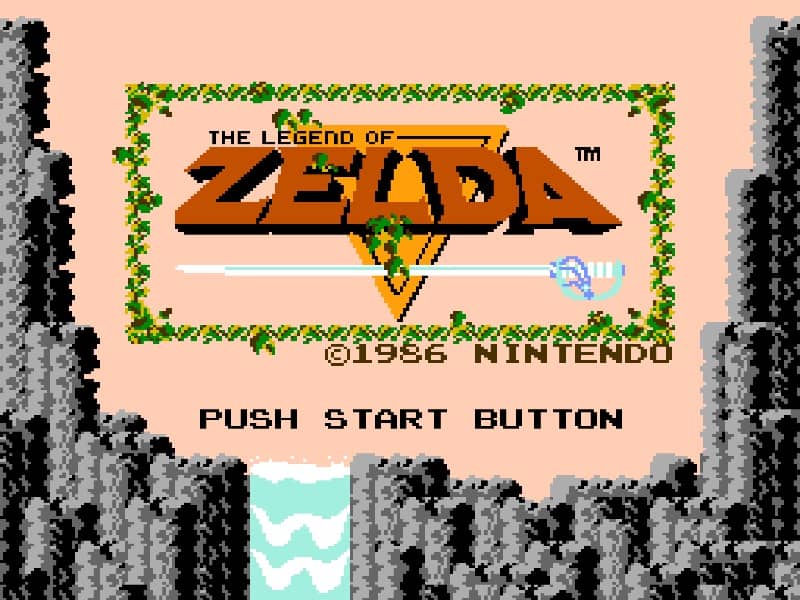
Famicom · 1986
The Legend of Zelda
The Legend of Zelda’s NES adventure: explore Hyrule, read dungeon maps, start the first quest and learn in-game saving and browser backups.
Famicom · 1986
The Legend of Zelda’s NES adventure: explore Hyrule, read dungeon maps, start the first quest and learn in-game saving and browser backups.
Click the button below to launch the Famicom emulator and start playing instantly in your browser.
These are separate games or editions; your saved progress does not transfer.
Browse all playable games →Wait for larger games to download. If loading stalls, reload and try again. Check your connection and allow this site's player files if a browser extension blocked them. Once the screen appears, click inside it before using the keyboard.
Read the playing helpStart the game, then use its on-screen direction pad and action buttons. If they are hidden, choose Show touch controls above the game. Turn your phone sideways for more room; use Fullscreen when your browser supports it.
Touch support varies by emulator and game. You can still expand the keyboard layout below, or connect a compatible keyboard or gamepad.
Control panel
Arrow keys move · Z = controller A · X = controller B · Enter starts · V selects.
A compatible gamepad can be used after launch.
Default Player 1 keys are shown. If you changed them or use a gamepad, check the player’s control settings.
System: Move the pointer over the game screen to reveal the player toolbar, or tap its menu button on touch devices. Use the toolbar for save and load states, fullscreen, and control settings.
Importing replaces the save stored for this game on this browser. Download your current backup first if you want to keep it.
Launch the game to check save-state support.
Save progress keeps one emulator snapshot for this game on this browser. Saving again replaces that snapshot. Download a backup before clearing site data or changing devices. No account or cloud sync is provided.
Import an OLDGAMES backup on this same game page, then launch and choose Resume saved game. Older .state files use the player’s Load State menu.
Favorites bookmark this page; they do not save progress.
In-game saves and emulator states are different. Availability varies by game and player. Browser storage can be cleared; a downloaded backup is not cloud sync.
More about controls and backupsPlayer feedback
Was this classic worth replaying?
Share this game
Share a direct link to this game page.
The Legend of Zelda’s NES adventure: explore Hyrule, read dungeon maps, start the first quest and learn in-game saving and browser backups.
Link explores Hyrule, gathering equipment and finding the dungeons that hold pieces of the Triforce. Progress depends on observation as well as combat: an item can make an earlier location worth revisiting. Dungeon layouts turn keys, locked doors and secret passages into navigation problems.
Mark locked dungeon doors and passages you cannot reach yet. Equipment found later can make an old room useful again. A short note about the obstacle is more helpful than simply recording that you have visited the screen.
This is the original top-down adventure. Zelda II changes to a different structure and should not be used as a control or dungeon reference.
Background and mechanics: Wikipedia game reference.
For the original top-down NES adventure. These notes use Nintendo manuals and developer interviews; they are not a full walkthrough or a report of browser playtesting.
Content updated · Editorial policy
| NES input | What it does |
|---|---|
| D-pad | Move Link; choose an item on the subscreen. |
| A | Swing the sword. |
| B | Use the equipped item. |
| Start | Open or close the inventory subscreen. |
| Select | Pause; choose menu entries. |
The browser panel shows keyboard keys. NES button labels refer to the emulated controller: use the player’s control settings to check the current A/B bindings, especially if you have remapped them.
References: Nintendo: The Legend of Zelda digital manual · Nintendo: Second Quest name shortcut · EmulatorJS: player features
| What you find | How to use it |
|---|---|
| Map | Reveals the dungeon layout; compare it with the rooms you have visited. |
| Compass | Marks the Triforce fragment, rather than revealing the route to it. |
| Bombs | Can open holes in walls as well as damage enemies. |
Keep two marks in your notes: “room visited” and “exit unresolved.” For example, a locked door to the east is still unfinished even if you have cleared the room. When revisiting, check that exit rather than repeating the entire floor.
A marked destination is not a complete route. Work backwards from the missing connection on your sketch, then decide which doorway or wall deserves another look.
References: Nintendo: The Legend of Zelda digital manual
Nintendo’s original booklet points players toward cave merchants, healing fairies and clues from people in the dungeons. It also recommends changing equipment to suit the enemy and paying attention to the dungeon level number.
Turn that advice into a short route log: record a landmark, what stopped you and what you want to test. “Cave near the lake: compare shop prices” is useful on a return visit; “explored the lake” leaves you with the same search again.
If a fight repeatedly ends your run, make the next trip about one thing: trying another equipped item, finding a healing stop or returning to a lower-numbered dungeon. Avoid changing several things at once, so you can tell what helped.
References: Nintendo: original NES instruction booklet
The game’s SAVE keeps adventure progress, not an exact paused scene. A downloaded emulator state serves a different purpose: restoring the running emulator. Local browser data can be cleared, and a download is not cloud sync. Before a long session, test that your backup can be loaded.
References: Nintendo: original NES instruction booklet · EmulatorJS: player features
Nintendo dates the Japanese Famicom Disk System debut to 1986 and explains that the overseas release used a cartridge. This catalogue uses the game’s first-release year; the year alone does not identify the region or revision of the browser file.
The notes here follow the NES manuals. Check the title screen and language before using a regional walkthrough. This page does not establish a specific ROM region or revision. Game & Watch hardware shortcuts are separate from the NES controller commands.
In Nintendo’s developer interview, Miyamoto describes including maps and hints while encouraging players to discover solutions themselves. Use this guide to understand your tools; open the original booklet when you want more detailed hints.
References: Nintendo: Miyamoto, Tezuka and Kondo interview · Nintendo: Second Quest name shortcut
Registering the name ZELDA starts the Second Quest. A raised sword beside Link on file selection identifies it. Choose another name in a new file for the first quest.
Open the inventory with Start first, then use Controller 2’s Up and A together. Check the Player 2 bindings in the emulator’s control settings; Player 1’s keys are different inputs.
No. Those lists help you reopen the page. Use the game’s save system or the player’s save-state options for progress, and keep a downloaded backup separately.
Practice routines and route-planning suggestions are editorial advice. Mechanics and edition facts are tied to the references below. No exact ROM-region identification or browser save-and-restore playtest is claimed.
Sections 1–2 and 5–6: controls, file registration, inventory, map, compass and bombs.
Printed pages 5–9 and 13–17: exploration hints, game-over options and the second-controller save command.
Japanese Disk System release, overseas cartridge edition and the role of maps and hints.
Section 2 documents the ZELDA name and raised-sword marker. Its hardware-specific shortcuts are not NES instructions.
Control remapping for multiple players and downloadable save/load states; not a guarantee of this file’s save compatibility.
Documented shortcuts: check the edition and controller requirements in the guide before using them.
Register name as ZELDAThis starts the harder Second Quest. Use a different name for the first quest; check the raised-sword marker on file selection.
Open subscreen with Start; Controller 2: Up + AUse the second controller’s mapped inputs, then choose SAVE. See the starter guide for Player 2 setup and a separate emulator backup.
The control panel below the game screen shows this edition’s keys. Click inside the game before using your keyboard.
Open the player menu for the options available in this emulator. Save support varies by game and player; see the playing help for more guidance.
Browse Adventure games across systems, or stay with the Famicom catalogue. Related picks below explain how each game connects.
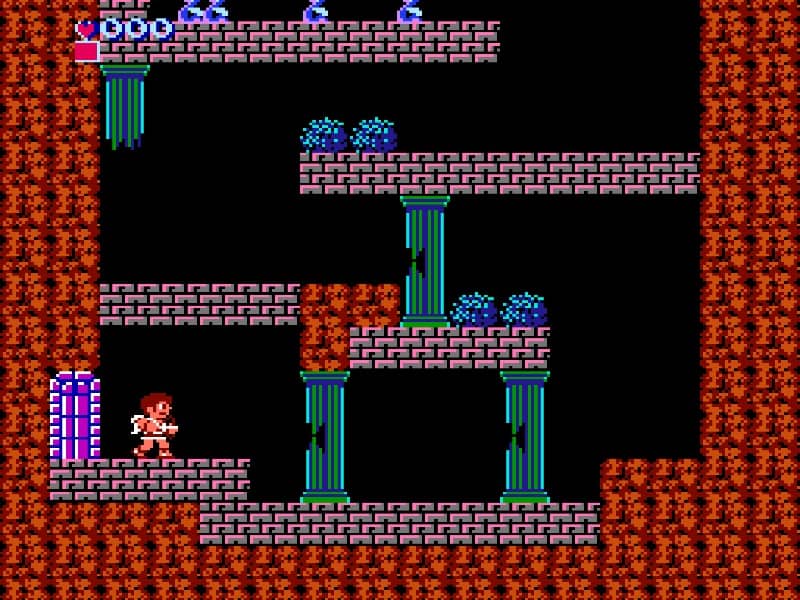 YEAR1986
Famicom
Adventure 1 Player
Action-adventure gameplay · Famicom
 YEAR1986
Famicom
Adventure 1 Player
Action-adventure gameplay · Famicom
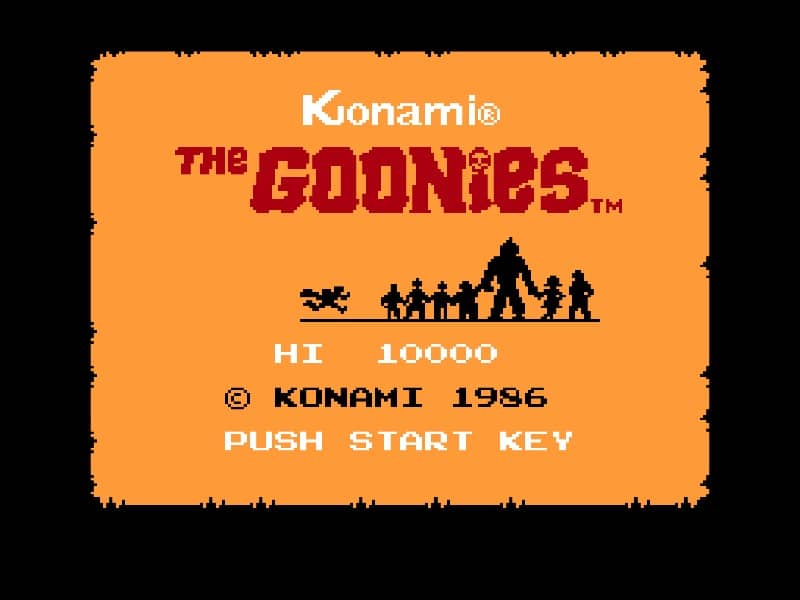 YEAR1986
Famicom
Adventure 1 Player
Action-adventure gameplay · Famicom
 YEAR1987
Famicom
Adventure 1 Player
Action-adventure gameplay · Famicom